How to run a live quiz with a leaderboard
Tchaku’s quiz is a full game inside your deck: timed questions score speed and accuracy, ranks glide up and down an animated leaderboard between rounds, and the winners land on a podium. It replaces a separate quiz tool — the quiz slides live next to your content slides.
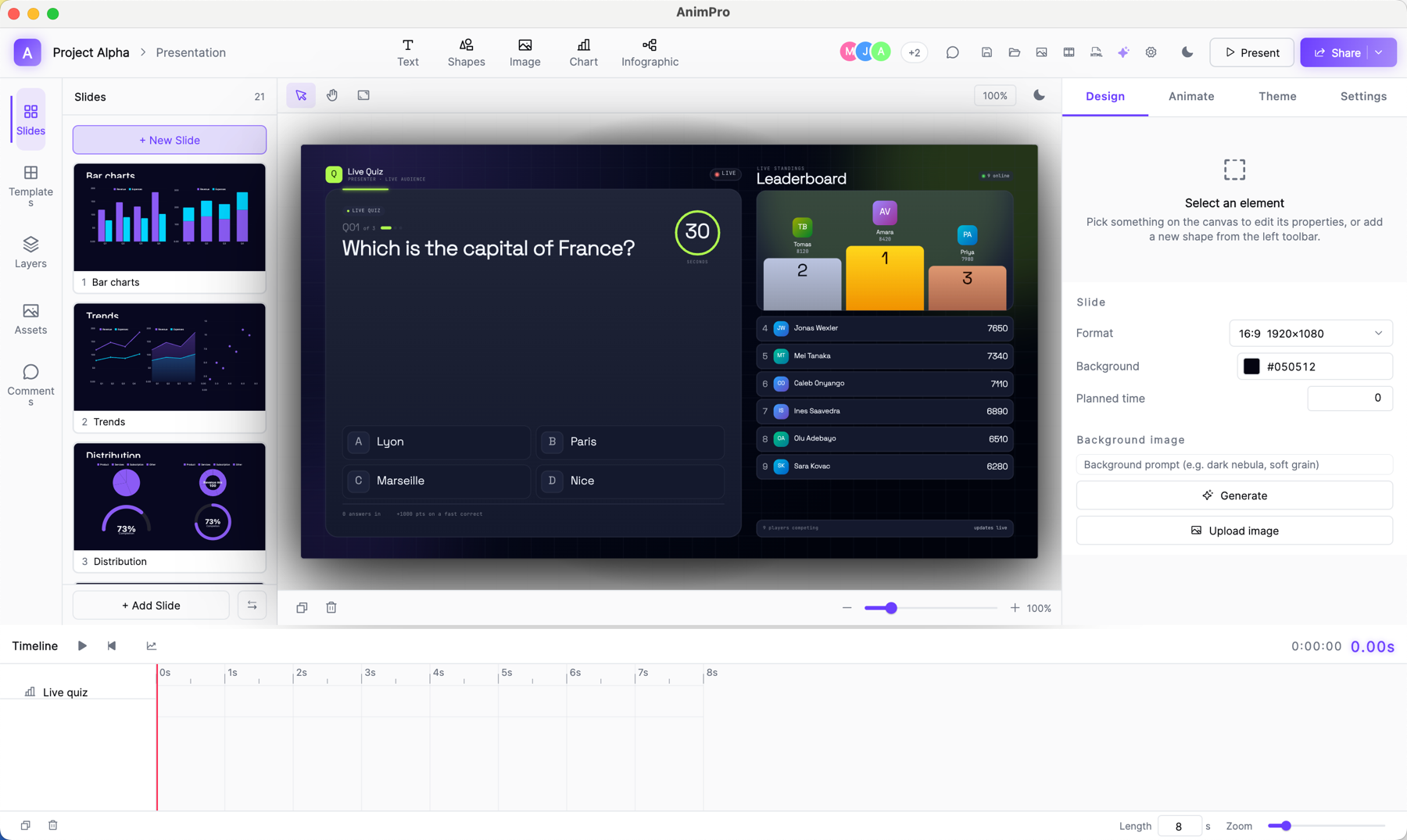
Add quiz question slides
Insert a Live Quiz widget from the Chart menu for each question. Write the question, the options, and mark the correct answer; set the countdown per question in the Design panel.
Drop in a Leaderboard slide
Add a Leaderboard widget wherever you want a standings break — after every question or per round. Between rounds, rows slide to their new ranks on screen; the final leaderboard becomes a podium for the top three.
Present and play
Players join by QR with a nickname. Each question locks when the timer ends; faster correct answers score more. You control the pace — the quiz advances when you advance the slide.
Review answers afterwards
Sessions in your dashboard keeps the whole game: per-player answers, per-question accuracy, and the final standings — exportable as CSV for gradebooks or follow-ups.
Questions
- How is the score calculated?
- Correct answers earn points, and faster correct answers earn more — the same speed-plus-accuracy scoring quiz shows use, applied per question’s countdown.
- Can I mix quiz slides with normal slides?
- Yes — that’s the point. Teach three slides, quiz one, show the leaderboard, keep going. It’s one deck.