Getting started with Tchaku
Tchaku is a presentation studio with a motion timeline, live audience widgets, and an AI deck builder. This guide takes you from a blank window to presenting your first animated deck — it works the same in the desktop app (macOS or Windows) and at app.tchaku.com.
Create a deck
Open Tchaku and pick from the Create screen: “Create with AI” describes your goal and builds a draft deck, “Start from a template” opens the layout gallery, and “Blank deck” gives you an empty canvas. On the web, sign in first — your decks are stored in your browser and reachable any time from the Decks section of your dashboard.
Add text, shapes, charts, and images
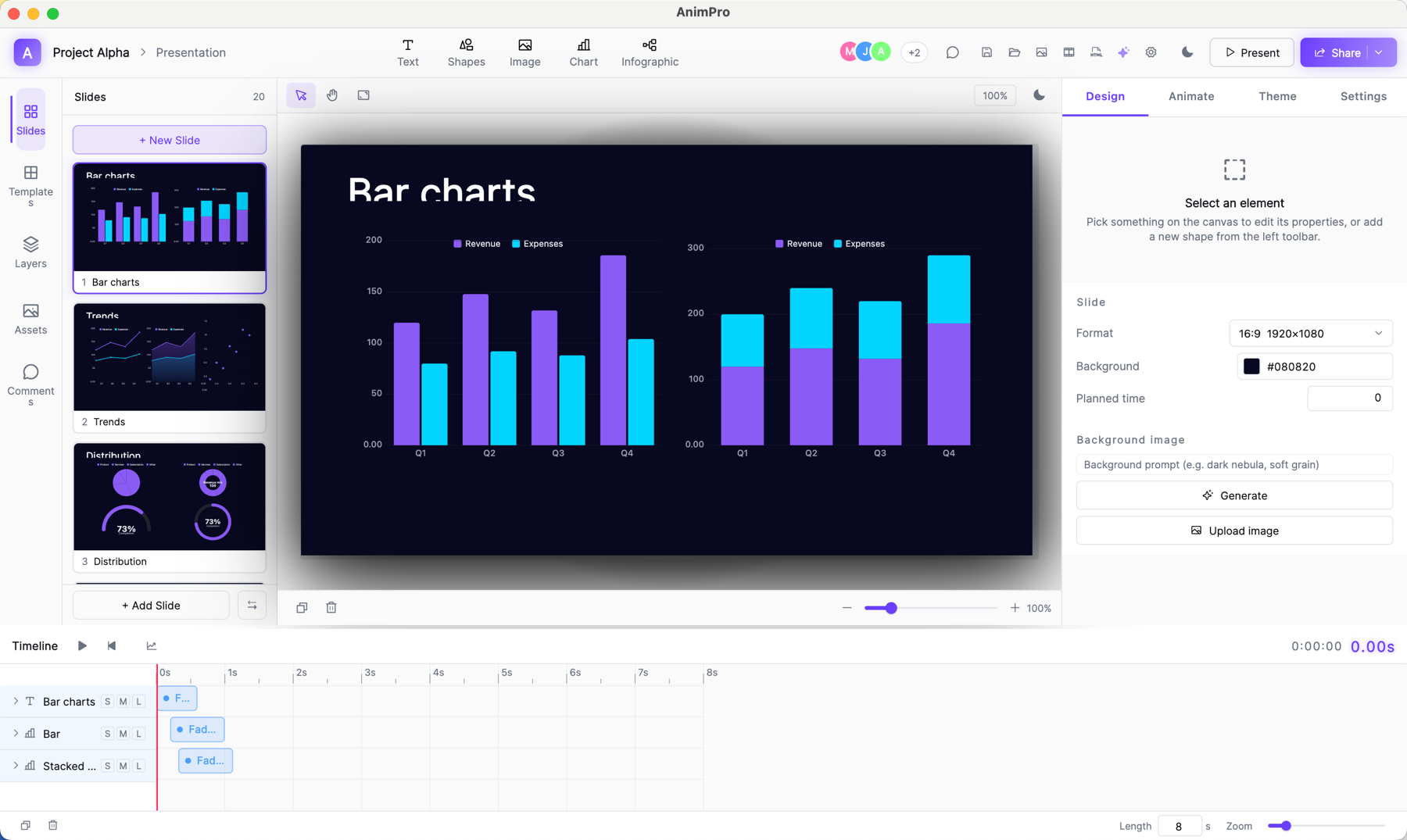
The top toolbar inserts everything: Text, Shapes (9 kinds), Image, Chart (40+ types, including the live audience widgets), Infographic layouts, and Tables. Drag anything into place — smart guides snap elements into alignment. The right panel’s Design tab styles whatever is selected.
Animate on the timeline
Select an element and open the Animate tab: pick from 12 effects — fade, zoom, path, 3D flip, morph, physics, stagger, typewriter and more. Each animation appears as a block on the timeline at the bottom; drag blocks to change timing, or use Build Order to reveal elements click by click, exactly like Keynote.
Present
Hit Present (top right). Arrow keys advance builds and slides; if your deck has live widgets, a QR code invites the room to join from their phones. Exit with Esc — if an audience answered anything, the results are saved to your session history automatically.
Save and reopen
On desktop, decks are .tch files — yours, on your disk. In the browser, decks autosave to the browser’s storage; reopen them from the Decks section of the dashboard or the editor’s Open button. Share links and exports are how a deck travels between devices.
Questions
- Do I need an account to use Tchaku?
- Not on the desktop app — download it and present, no sign-up. The browser version needs a free account so your decks and results can be found again.
- Does Tchaku work offline?
- The desktop app works fully offline for editing and presenting. Live audience widgets and AI generation need a connection.